

If you want your reader to click on a photo or a logo to visit a different site, it’s easy.
I’ll explain how to do this in Gmail, Outlook, and Mailchimp. If you’re using another email platform, the steps should be similar.
How to Make a Clickable Image
 Gmail
Gmail
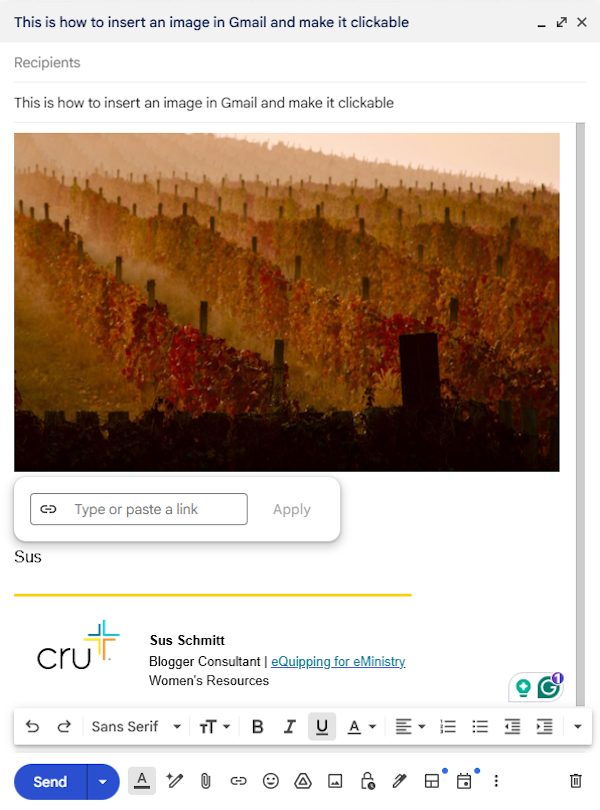
If the screenshot (above) will help you understand these steps, I’ve typed an * at the end of the line.
- Click “Compose” to start your email.
- Place your cursor in the body of your message where you want to insert an image.
- Click on the “Insert photo” icon to the right of the blue “Send” button.*
- I chose to upload a photo, but you can retrieve an image from Google Photos or a URL.
- If you click on the photo, you will see editing options and small blue squares at the corners of the image. This will not work for inserting a link.
- Instead, press your left mouse button and move your cursor across the image to highlight it. Your photo will be highlighted in blue.
- Click on the “Insert link” icon to the right of the blue “Send” button.*
- A link window will open under your picture where you will paste your URL.*
- Click “Apply” and you’re done.*
- Test your email.
- Send your email.*
 Outlook
If the screenshot (above) will help you understand these steps, I’ve typed an * at the end of the line.
- Open a New Email window.
- Place your cursor in the body of your message where you want to insert an image.
- Click on the “Insert” tab at the top.*
- Click on the “Pictures” icon.*
- Choose a photo from a folder in the Insert Picture window.
- Click on “Insert” in the lower left.
- The Outlook tab at the top is now set to “Format.” Go back to the “Insert” tab.*
- Click on the “Hyperlink” icon to the right of Tables and of Shapes.*
- An Insert Hyperlink window will open.*
- On the left side, under “Link to: the “Existing File or Web Page” is already highlighted in blue.*
- Paste your URL in the “Address” field at the bottom of the window.*
- Click “OK” and you’re done.*
- Test your email.
- Send your email.
 Mailchimp
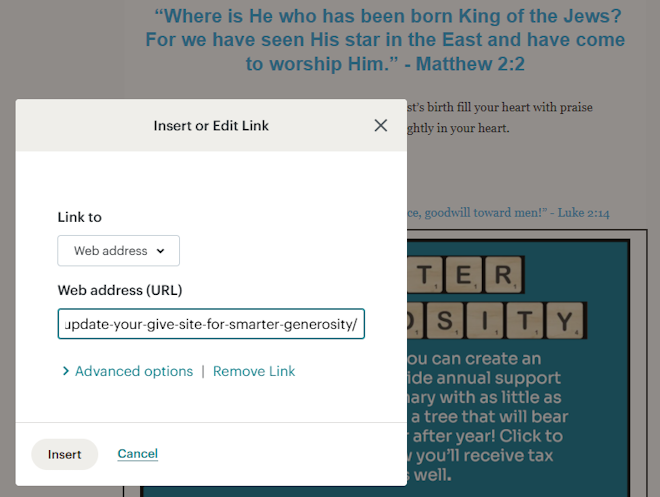
If the screenshot (above) will help you understand these steps, I’ve typed an * at the end of the line.
- Start your Mailchimp campaign in the Mailchimp editor.
- In the Design phase, choose the Image block in the right-hand half of the editor screen.
- Drag the Image block to the left side of the editor, where your email is taking shape.
- Drop the Image block where you want it in the email.
- Upload or drag your photo into the Image block.
- Click on the image. The right half opens with a thumbnail of your photo.
- Click “link” next to the thumbnail.
- An Insert or Edit Link window will open.*
- Paste the URL into the “Web address (URL)” field.*
- Click “Insert.”*
- Click “Save & Close” at the bottom of the right-hand half of the screen.
- Click “Preview” in the upper right corner of the editor screen. A dropdown will open.
- Click the first choice in the dropdown, “Enter preview mode.”
- You’ll have the option to see your email in Desktop or Mobile format.
- Click “X” in the upper right to close the preview window.
- Click “Preview” in the upper right again.
- Click the second choice in the dropdown, “Send a test email.”
- The “Send a Test” window opens.
- Fill in one or more email addresses in the “Send a test to” field.
- Click the “Send Test” button.
- Click “X” in the upper right to close the preview window.
- If the test looks good, click the “continue” button in the upper-right corner.
- Schedule or send your Mailchimp campaign.
Test
It’s always a good idea to send a test email to verify your image is clickable.
I’m working with Janet Richards and others on “Smarter Generosity” banners for email and Mailchimp. We’ll alert you when these are ready for staff.
Meanwhile,
- Practice making images clickable. Try setting up hyperlinks to your ministry website or to your give.cru.org page.
- Update your give.cru.org site for “Smarter Generosity.” I wrote about an easy way for you to add “Smaarter Generosity” information to your give page.
NOTES:
- For the Mailchimp example, I used our 2024 Christmas card as a template to test a clickable “Smarter Generosity” banner in an email
- Paper airplane photo by Matt Ridley on Unsplash.
- Vineyard photo by Martin Vysoudil on Unsplash.
 eQuipping for eMinistry