

Tips for Cropping
Do you have a great family shot for a Facebook cover photo, but part of someone’s head is missing? Your children’s eyes on the bottom edge of the image are as if they’re peeking over a wall. I hope I can help you avoid a situation like this.
Free photo editors are handy tools to learn. Paint.net is what I’m using in this post. Canva has a photo-cropping feature but doesn’t let you set a specific ratio, as we’ll do for Give.Cru.org. You might have another free photo editor you like, such as Gimp.
The following tips should work for most photo editors and be relevant for social media.
Crop Your Give.Cru.org Photos with Paint.net
I’m helping Cru staff with their Give sites in this article, but these tips for cropping should work for other readers.
Start with the Right Picture for Your Header Image
First, only specific portraits will work. Your photo must have all the faces in the potential frame.
Now that you have a good photo, Give.Cru.org, Facebook, and Workplace will allow you to reposition it to fit their frame. Some platforms don’t offer this. (I’ll save more tips about Facebook and Workplace for the end of this post.)
You will have times when you need to know how to crop. You will be cropping if your subject is not centered or you want to use your portrait photo in a landscape space.
Pay Attention to the Default Crop
For many social sites, the default crop is right through the middle of a photo. For this post, I’ve chosen a picture of a farmer in a cornfield. Notice the rectangle with dashes around it in the image below. This might be where the default crop occurs. I’m okay with the default for this photo.

Start Cropping!
This next photo has a subject low on the left. A crop through the middle is okay but does not work well.

I cropped it lower for a better picture.
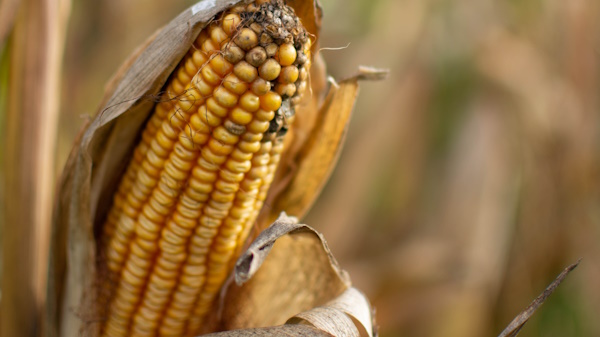
The crop I’m using has the exact dimensions as a header image for your Give page, 1140 x 640 pixels.
It helps (but is not necessary) to have the correct dimensions for a photo before you upload it.
Cropping for Give.Cru.org
You may need the tips in this post to fix a photo for your Give.Cru.org site. Use your favorite photo editor or download Paint.net for free (it’s shareware, so you may wish to donate).
Go to File / Open to bring your photo into Paint.net.
Click on the rectangle selection in the Tools Window.
Set the crop for a fixed ratio of 1140 wide by 640 high.
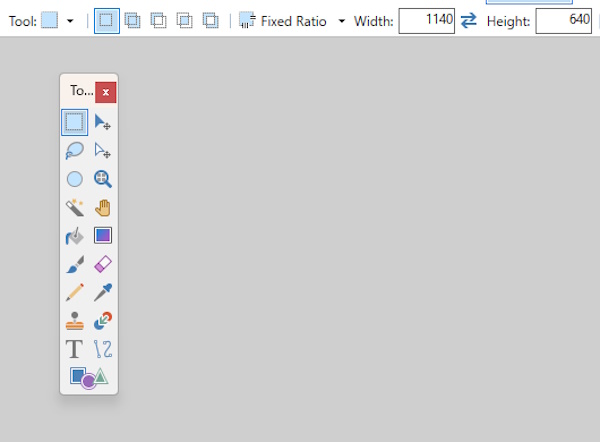
Drag and drop your cropping rectangle over your photo until you have what you want.
Click on Image / Crop to Selection
Click on Image / Resize.
(If a photo is too small, less than 600 pixels, it won’t work for your Give. Cru.org header image. Find another picture.)
I always resize the width to 600. The height will adjust.
File / Save As. I assume you want to keep your original photo. This crop is for uploading to Cru.Give.org.
Secondary photos on your Give site don’t need this attention to detail.
 Workplace Bonus
Your image for a Workplace header is 1385 x 300. See above for the cropped image I’m using for Birders on Staff.
Facebook headers are 1250 x 465 pixels.
Did you try this? Send me a before and after of your photo. I’d love to see what you were able to learn about cropping.
NOTES:
 eQuipping for eMinistry